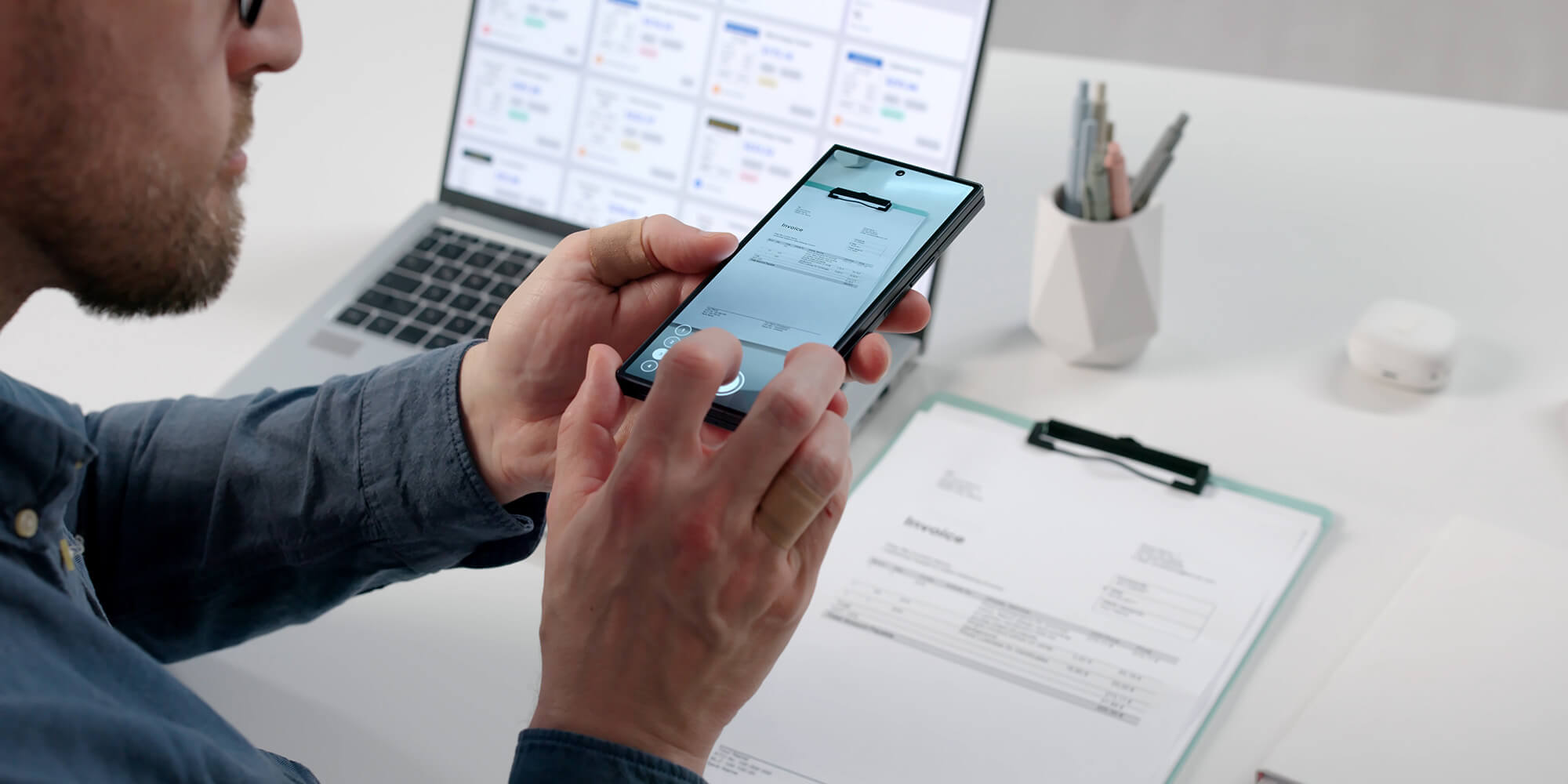
These days, you no longer need a printer or a dedicated scanner to digitise a document. Whether you’re using an iPhone or an Android smartphone, it only takes a few seconds to create a clean, clear PDF that’s ready to send.
Here’s a comprehensive, clear and effective guide to scanning your documents from your phone.
1. Scanning a document with the Notes app (iPhone)
Good news for iPhone users: no download required. The Notes app includes a powerful and very easy-to-use scanner.
How to do it?
- Open Notes.
- Create a new note.
- Top the 📷 icon, then tap Scan Document.
- Frame your page: the iPhone automatically detects the edges.
- Adjust if necessary, then confirm.
- To export as a PDF: open the scan → Share → Save as PDF
👍 Pros
-
Extremely intuitive
-
Clear scan quality
-
Built-in iPhone feature
👎 Cons
2. Scan a document with Google Drive (iPhone & Android)
Ideal for those who want to automatically save their documents to the cloud. Google Drive includes a simple and effective scanner.
How to do it?
-
Open Google Drive.
-
Tap + → Scanner.
-
Take a photo of the document and adjust the edges.
-
Confirm by tapping OK, then Save (the PDF is automatically created in Drive).
👍 Pros
👎Disadvantages
3. Scan with a dedicated app: Adobe Scan, CamScanner, ...
If you’re looking for a professional finish, text recognition (OCR) or advanced editing, opt for a specialised app.
The best scanning apps in 2025/2026
-
Adobe Scan (iOS/Android) : High-performance OCR, excellent quality.
-
CamScanner (iOS/Android) : Annotation, filters, pro options.
How to do it?
- Download the dedicated app.
- Tap "Scan a document"
- Take the photo, adjust the framing
- Apply a filter (black and white, text enhancement, etc.)
- Export to PDF or JPG.
👍 Pros
-
Advanced features
-
Built-in OCR
-
Cloud storage options
👎 Cons
Wich method should you choose?
- If you’re on an iPhone → Go for Notes, the simplest and quickest option.
- You already use Google Drive → Google Drive Scan is ideal for keeping everything in one place.
- You want a professional-looking result or an OCR scan → Adobe Scan, CamScanner or Microsoft Lens.
In conclusion : scanning with a smartphone is simple, quick and effective
Whatever method you choose, your smartphone can now effectively replace a traditional scanner. In just a few seconds, you’ll have a clean, legible document that can be exported as a PDF. Perfect for sending administrative paperwork, scanning a receipt or sharing a contract.
If you’d like to benefit from a higher-performance camera for even sharper scans, consider opting for a newer smartphone — the quality of the sensors really makes a difference.
Need a new smartphone? BusinessEurope - DEEP